Skip to content

Product/Studio

The publishing system, from idea to every reader

Overview, content, an editor with every language side by side, calendar, media library, buy links, templates, sections, home page, apps, connections, team & agents and settings – one place, one login, one truth.

19templates, each with its own blocks and checks
15languages, each version edited and released on its own
1.2 safter each change, everything is saved
∞revisions – every save kept, any restorable
Studio · the overviewexample data
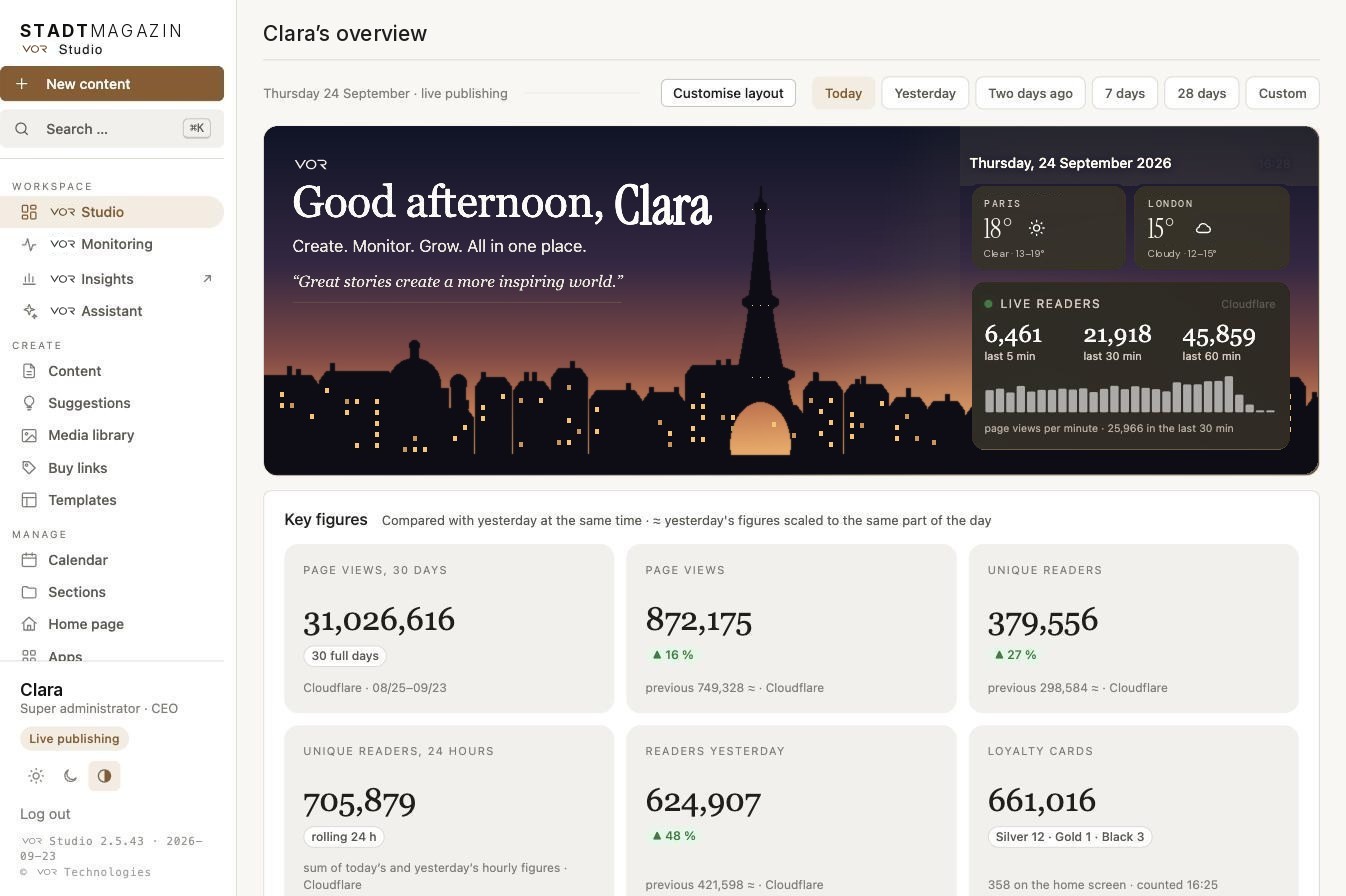
VOR Studio: the overview with the greeting, live readers and key figures

The overview

Your day, in your name

The overview is personal. On top the key figures for today, yesterday, 7 days, 28 days or a custom span – always compared with the same time in the previous period, so a Tuesday morning is compared with Monday morning, not with all of Monday.

Six key figures at once

Page views and readers from the edge network (every reader), read time from the site's own measurement, buy clicks and commission from the affiliate networks, published and to do from Studio. Every tile says what it counts: the span, the source and when.

Customise the layout

Move or hide any figure with ← → ✕; hidden ones wait in their own row and come back with +. Saved on your account – your overview, your order.

Waiting for you

What you should approve, where you left off, the newsroom today – then the chart, right now, most read, sources, devices, sections, revenue and countries.

Order

Seven buttons – Shopping edit, Article, Commercial article, Feature, Recipe, Place guide, List. Write the subject and the angle, choose the section, tick Urgent. The order lands in your name in the queue the agents work from.

Best ideas right now

The trend watch's highest-scoring suggestions. Order turns one into a brief with angle, keywords and stores; Dismiss removes it.

Ask VOR

One chat per person, working as you with your rights: find and read content, create drafts, check, preview – and everything in Insights. Status and publishing only on your explicit order.

Make it yours

Drag, drop, hide – your overview, your order

The overview is one grid: 21 blocks and 24 key figures. Every block has a grip and drags. Every key figure moves one step earlier or later, or hides – and comes back with a tap. The layout is saved on your account – two people, two overviews.

The grip

Point at a block and a grip appears in its corner. Hold it and drag the block anywhere in the grid – a marker shows where it will land, before or after the block under the pointer – and it moves when you let go, so the grid never jumps under your hand.

Customise layout

The button on top turns on ← → ✕ on every block and on every key figure: one step earlier, one step later, or hide. Every move is drawn at once, in the order you chose. Done saves it.

24 key figures, six on top

Page views, unique readers, read time, buy clicks, revenue per stream, loyalty cards, published, to do … The first six in your order sit on top; the rest wait behind “Show 18 more figures ▾” – opened or closed as you left it.

Hidden figures come back

✕ hides a figure but never loses it: it stays as a dashed tile in the grid with “+ Show”. Outside Customise a button next to Show more says “1 hidden figure: Read time per view +” and takes you straight to it. Reset the figures restores the default order.

No empty spaces

When the last row is not full, the last tiles widen to share it – one tile alone spans the whole row. Recalculated when the window changes width.

Saved on your account

The layout – the blocks, the figures, the hidden ones – is written 0.6 s after your last move, per person. Your colleague's overview is their own.

The editor's panel, too

The panel's groups – Publishing, Section and template, Tags … – are blocks as well: move or hide them from the panel header.

Long lists fold

Anything longer than a screen shows its first rows and the rest behind Show all: most read shows five of ten, the key figures show six with “Show 18 more”.

The greeting block

A greeting by time of day and your name; the picture, the cities and the quote from Settings; the date and clock; live readers for the last 5, 30 and 60 minutes with page views per minute – counted on the server.

21 blocks

Greeting, Key figures, Recent content, VOR Monitoring, Ask VOR, Shortcuts, Waiting for you, Pick up where you left off, The newsroom today, Order, Suggestions, The chart, Right now, Most read, Sources, Sections, Revenue, Countries, The archive, Latest in Studio, Latest on the site.

Content

The archive and the status flow

Everything published on the site – imported from your legacy CMS – and everything made in Studio, in one list.
Studio · Contentexample data
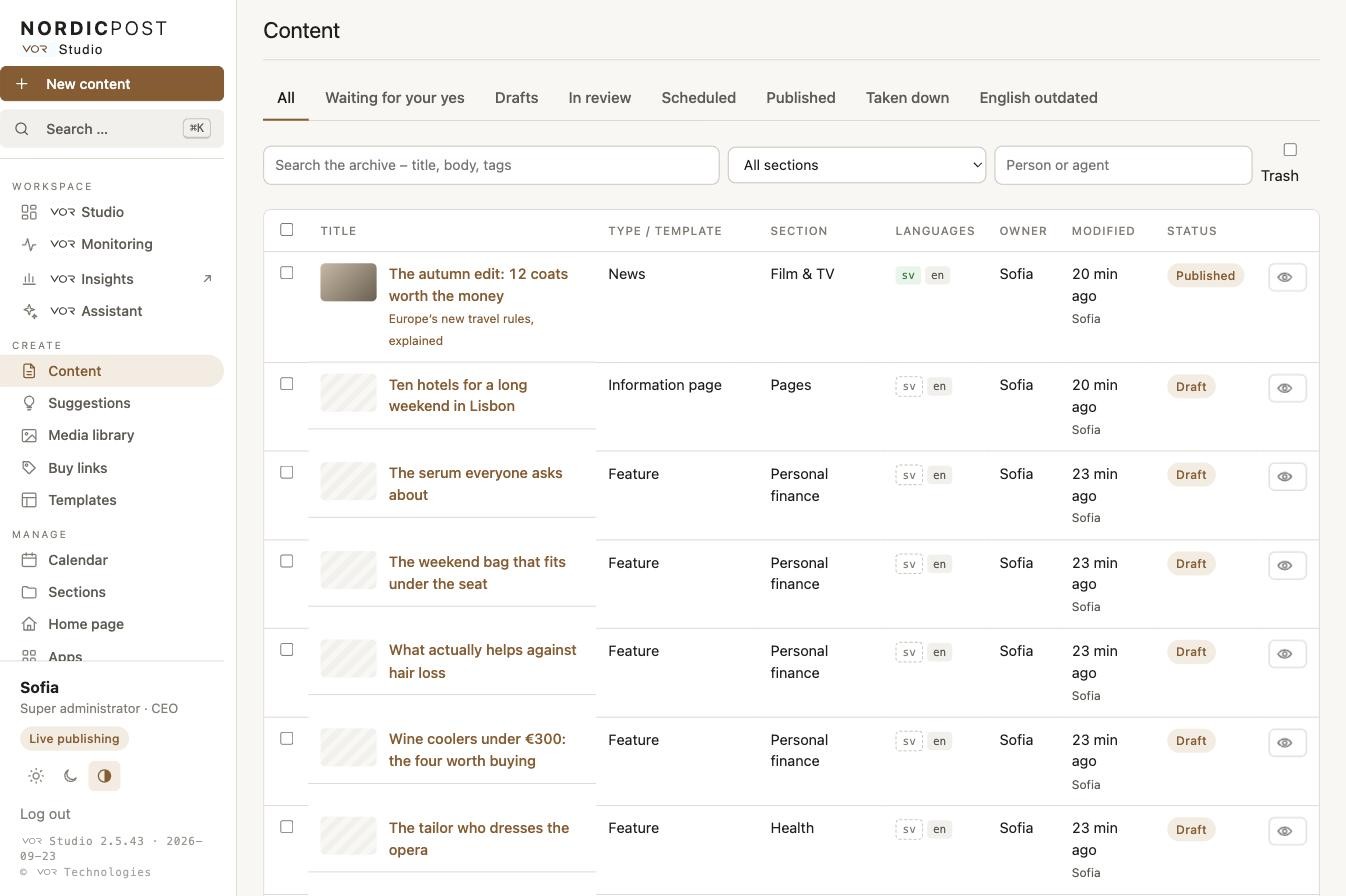
VOR Studio: the content list with status, languages, owner and preview

Draft → In review → Approved → Scheduled → Published

The tabs follow the status flow, plus Taken down. Search in headline, body and tags; filter by section and by person or agent.

Every row tells you

Image, headline and address, template, section, the language versions (green = done, yellow = needs updating, grey = missing), owner, modified, status. The eye opens the preview.

Nothing is deleted

The trash is its own view: content is moved, never destroyed. A dismissed draft stays in the legacy CMS.

Waiting for your yes

Everything that awaits a yes in one place – what agents wrote, the day's first draft, content in review – with Publish now, Schedule and Dismiss. Publishing requires that you tick that you have read it and have the right.

Suggestions

Suggestions with a business case (readers' searches matched to approved stores), editorial ideas from over a hundred newsrooms, Google Trends and running campaigns. Order, New content or Dismiss on every card.

Tags, dictionary & people

No article is published untagged. Suggest tags reads the text; the dictionary counts names in the body without a tag – articles that do not find each other – and creates the tag in one click.

The editor

Every language side by side

The article in one or several languages next to each other. Each language has its own status, preview and history with every revision.

Blocks, not a blank page

Paragraph, subheading, image (normal, wide, full width), lists, quote, fact box, recipe, place with map, product with buy link, embed, link card, video, gallery, banner, key points, correction, live updates, quiz, comparison, step by step, event, questions and answers, quick facts, timeline, social channels, related.

The buttons on top

View article, Improve (SEO title, meta description, teaser title, share text, tags – nothing inserted by itself), Check, Panel (metadata, tags, categories, sponsored label), Take down, Publish in N languages, Re-translate.

Check – the format guard

Headline at most 70 characters, standfirst first, hero 1200×800, a subheading every third to fifth paragraph, at least three tags, right and credit on every image, no image shared between articles, prices from the store, no outbound links in the body, no duplicates. Blocking errors stop the release; the editor-in-chief can override – logged with the errors skipped.

Saves itself

Everything saves 1.2 seconds after each change and the button furthest left tells you where you stand. Words, reading time and the longest paragraph under the text.

Two people, no overwriting

Studio fetches the latest version before every save and asks you to merge if someone else got there first. Every save is a revision you can restore.

Move blocks, edit images

Arrows in the margin, drag with the handle, Alt+↑/↓. The image editor crops (free, 3:2 hero, 1:1, 4:5, 16:9), rotates, scales – “Hero 1200×800” in one click – and saves as a new image; the original is never touched.

Link a word

Select, press Link (or ⌘K), type the address. Own pages as a path; a source with its full address opens in a new tab, nofollow. The check warns when a link cannot be shown on the site.

Video, embeds, link cards

Your own video in the site's own player (MP4/WebM, poster, caption, credit, muted loop as a GIF). Paste an address on an empty line and Instagram, TikTok, YouTube, Spotify, Vimeo, X, Threads or Giphy become a block. Pages that cannot be embedded become a link card with image, title and button.

The picks guide and the picks list

A shopping edit in three steps: title and count, paste the product links, put it in the article. The picks list shows every product card as a grid: drop files (scaled to 1080×1080), paste a list of links – one per line – and every card is written into the article at once.

Templates

19 templates, each with its own blocks and checks

Choose by what you are making, not by its name. Every template is shown as it looks on the site; open the full example on phone, tablet and desktop, create a draft from it or start empty. The template decides which blocks are required and which sections it fits.

EditorialNews

Something happened. Headline, standfirst, hero, body – the fastest way to the site.

EditorialFeature

The long read: interview, portrait, place. Wide and full-width images, pull quotes.

EditorialList

Top lists and “10 ways to …”. Sections numbered by the site, a table of contents from three sections.

StructuredRecipe

Ingredients, steps, time and servings as structured data – search engines get the recipe.

CommerceShopping edit

Shopping tips with buy links. The picks guide takes you through it; every card gets a tracked link.

AudioPodcasts

An episode with player, show notes and the series box.

CommerceAudiobooks

Audiobook with cover, narrator, length and the buy link.

CommerceBooks

Books with cover, author, buy link – singles or a whole list.

StructuredPlace guide

Hotels, restaurants, destinations with map, weather and booking button.

StructuredReview

Rating, quick facts, pros and cons and the verdict – search engines get the review.

PageInformation page

About us, terms, contact – pages that are not articles.

CommerceBest in test

One row per product with rating, label, price and buy link. A table on mobile, a grid on desktop.

StructuredStep by step

What you need, how long it takes, the steps – Google gets the guide as HowTo data.

StructuredEvent

Start and end, place with map, ticket link, a date badge and a countdown that counts by itself.

EditorialInterview

Questions and answers – Quick five or the long conversation – with quick facts about the person.

EditorialProfile

Quick facts, timeline, social channels and the latest about the person, fetched by tag.

LiveLive report

Live updates with time and image; readers with the tab open get them without reloading.

InteractiveQuiz

Personality or knowledge quiz that runs in the reader's browser, with shareable results.

VisualPicture story

The pictures carry the text: swipe on mobile, full width on desktop, caption and credit per image.

Publish

Now, scheduled, backdated – in every language at once

Publish creates a release: every language version goes live at the same moment, on the site's own address with the language in front.

Now or a time

Choose Now or a date and time. A date in the future is scheduled – the article lands in the calendar and goes live by itself. A date in the past publishes now but dates it so: it takes its place in the archive, the feed and the section.

Every release logged

Idempotent, with who ordered it and when. Failed releases show in the overview and raise an alarm.

Take down, never delete

Take down removes the article from the site but keeps everything in Studio. Prices are corrected without unpublishing – fix and republish.

Live publishing

A switch in Settings: on = releases publish to the site; off = test mode, drafts only. Management approves the production switch.

Preview links

Every draft has a preview anyone can open – a colleague, a client, a source – without a login and without a plug-in.

The calendar

Everything scheduled and published, day by day, including what is scheduled directly in the legacy CMS. The day's first draft and the horoscopes show here too.

Media and commerce

The image bank, the rights, the money

The media library

All images – the site's whole archive and what is uploaded in Studio – live in the image bank and are served from there. Every image has a right (press, stock, own, licence, AI), a photo credit and alt text. The tab Rights missing shows what must be sorted before an image may be used.

Rules Studio keeps

Hero exactly 1200×800 with a focal point so the teasers crop right; two articles never share an image; product images show exactly that product; social posts are embedded, never downloaded.

Buy links – VOR Link Generator

Paste the product's address; Studio recognises the store, finds the program in the right network and builds the tracked link. In an article the product block does the same with the article's id set, so every euro can be tied to an article.

Campaigns and programs

The networks' latest campaigns per section – material for shopping edits. All programs you are approved for; if a program lacks tracking, paste a ready link once and Studio learns it.

The price rule

The price is always the store's own price on the product page – never a member price. The price guard corrects it in the article without unpublishing.

Sponsored content

A sponsored article cannot be released without its label; the check stops it. The site marks shopping edits as advertising by itself.

The home page

The hero, the menu row and the rotations

The home page is edited in Studio, not in code.

The big hero

Up to five articles per place – the home page and every section – rotate one at a time, switching every ten minutes. Your own pick stays up 24 hours unless you choose longer; then the rule takes over and the hero shows the latest from the sections you choose. Release lets the rule decide.

The menu row

Fixed places on top; the rest compete by yesterday's page views, recalculated every morning or with one click. Pin a section to give it a fixed place; Release lets it compete. The saved row reaches the site within a minute.

The shopping rows

The latest shopping edits with tracked links rotate every fifteen minutes. Each edit has a switch and a Pin; the strip shows what is up now and when the next switch happens.

Pinned on top

A published article can be pinned on top of its section from its page in Studio.

The campaign teaser

A teaser under the top teasers – a season, an event – switched on with a date.

Theme rotations

Groups of articles allowed to rotate on the home page and in their section, with a switch per group and per row.

The reader app

Your site as an app – with a loyalty programme

Readers add the site to their home screen and get the tools, the games, the guides and their own loyalty card. Studio shows every app installed in the app and how it is used.

The loyalty programme

A reader card in the app that carries the reader's name. Points for opening the app each day and for doing things – games, saves, shares, tools. Four levels that never drop; the top level by invitation from the newsroom. Benefits are ordinary articles with a tag, so the newsroom publishes them like anything else.

Counted, never tracked

The phone reports card number, level and points once a day – never the name – so Insights can show how many readers sit on each level. A page shows the full card, takes the name and the invitation code, and lists the benefits.

Apps – the library in the app

Every app installed in the reader app, family by family: My apps, The checks, Tools and Play. Name in both languages, description, address, and the usage: users, views and minutes over 7 days, users over 30 days, one bar per day for 14 days.

On the phone only

The shopping list, the recipes, the wishlist and the guides keep everything locally and send nothing to the server – marked “On the phone” instead of showing zeros.

Own player, own tools

Video plays in the site's own player; quizzes, calculators and games run in the reader's browser without a login.

One switch to the site

The same content, the same search and the same buy links as on the site – the app is the site, installed.

Team, agents and settings

Rights you set, keys shown once

Roles for people

Super administrator, editor-in-chief/publisher, administrator, section editor, writer, translator/reviewer – with sections and languages per person. The editor-in-chief publishes, schedules, approves translations.

Agent accounts

Every agent has its own service account with a traceable identity (agent:name) and a key shown only once. Default right: create drafts. Publishing and scheduling are granted explicitly per section, template and language. Calls are shown per agent; revoke at any time.

Connections

Claude or another assistant works in Studio as you – with your rights, in your name – after one Allow. No key anywhere. Disconnect and it stops at once.

Languages

Your first languages are always on; add another in Settings and it gets its own public address. The interface language is your own choice, independent of the article's.

Legacy CMS sync

Changes made directly in the old system are fetched every fifteen minutes as a new revision – whatever someone is working on in Studio is left alone. Start on top of WordPress, bring the archive, switch when ready.

Export

All content, language versions, revisions, media records and releases as open JSON – any time. OpenAPI describes the whole API.